Apple Health · Practical guide
How to track vitamins and supplements in Apple Health
The Health app on your iPhone can already remind you about vitamins and supplements. Here is how to set it up, log each dose and recognise when you need more than it offers.
Yes, you can track vitamins and supplements in Apple Health. Add each product in the Health app's Medications section, give it a schedule, turn on reminders and log every dose as Taken or Skipped. It is free and already on your iPhone. A dedicated app becomes useful when you want label details, a larger cabinet or a different workflow.
Disclosure: we make StackMyMed. The Apple Health steps below follow Apple's own support documentation, linked in the text and checked on 19 November 2026. Menu names can differ slightly between iOS versions and regions.
Before you start: gather the labels
Apple Health asks for a name, a type and a strength for each product. Have the bottles or boxes in front of you rather than typing from memory. For each one, note the product name as printed, the form (capsule, tablet, powder, liquid), the strength per unit and the times you already take it.
Use the plan you already follow from the label or from your pharmacist or clinician. Apple Health records that plan; it does not decide what you should take or when. If you are still deciding how to organise the times, our supplement reminder schedule worksheet helps you lay it out first.
How to add a supplement to Apple Health
Apple documents these steps for tracking medications, vitamins and supplements on iPhone:
- Open the Health app and tap Browse, then Medications.
- Tap Add a Medication (or Add Medication if your list already has items).
- Type the product name and tap Add. In the U.S., suggestions appear as you type and you can use the camera to identify some products. Outside the U.S., or for an unlisted product, you enter it yourself.
- Choose the type, such as capsule or tablet, and tap Next.
- Choose the strength. If the right strength is not listed, add a custom one from the label.
- Set the schedule: how often, which days and what time. Tap Change under "When will you take this?" for options such as every few days or a cyclical schedule.
- Optionally choose a shape and colours so the product is easy to recognise, then tap Done.
Repeat for each product. Apple notes that unlisted products are not included in its interaction information, which is available only in the United States.
Turn on reminders and log each dose
Once a product has a schedule, Health sends a reminder at each scheduled time. To log, tap the notification and choose Taken or Skipped, or open Medications, select the day and mark each item under Log.
In Medications > Options you can turn on Follow Up Reminders, which alert you again if a dose has not been logged 30 minutes after its time. Apple also documents Critical Alerts per product, which sound even when a Focus is on or the phone is muted. Use them for the items where a missed reminder matters most to you.
If reminders do not appear, check that the product shows a schedule rather than "Schedule Unavailable". Apple's support article on adding and logging medications explains that cyclical and specific-day schedules need iOS 18 or later. Our iPhone pill reminder guide covers notification settings in more detail.
Review your history and share the list
Tap a product in Your Medications to see how often it was logged as taken or skipped. When you need a list for an appointment or for a family member, scroll to the bottom of Medications and use Export PDF, or share selected items through Health sharing.
When you stop a product, archive it instead of deleting it. Apple explains that archiving keeps the details and log history, while deleting removes them.
Where Apple Health can fall short for a supplement routine
Apple Health covers the core job well: a schedule, a reminder and a record. People with larger or changing supplement routines often run into a few gaps:
- Label details: the record centres on the name, type and strength. It does not keep the full Supplement Facts panel, serving size or the other ingredients in a multivitamin.
- Manual entry outside the U.S.: without suggestions or camera lookup, every product is typed by hand.
- Label photos: Apple documents a name, type, strength, schedule, shape, colours, a nickname and notes. It does not document a place for a photo of the package, so checking a detail later means finding the bottle again.
- Comparing products: with only names and strengths, it is hard to see that two products share an ingredient.
None of this makes Health the wrong choice. If its records are enough for you, there is no need to add another app.
When a dedicated supplement app makes sense
A dedicated app is worth a look when the gaps above get in the way. Our comparison of supplement tracker apps for iPhone sets out the main options and what each one is built for.
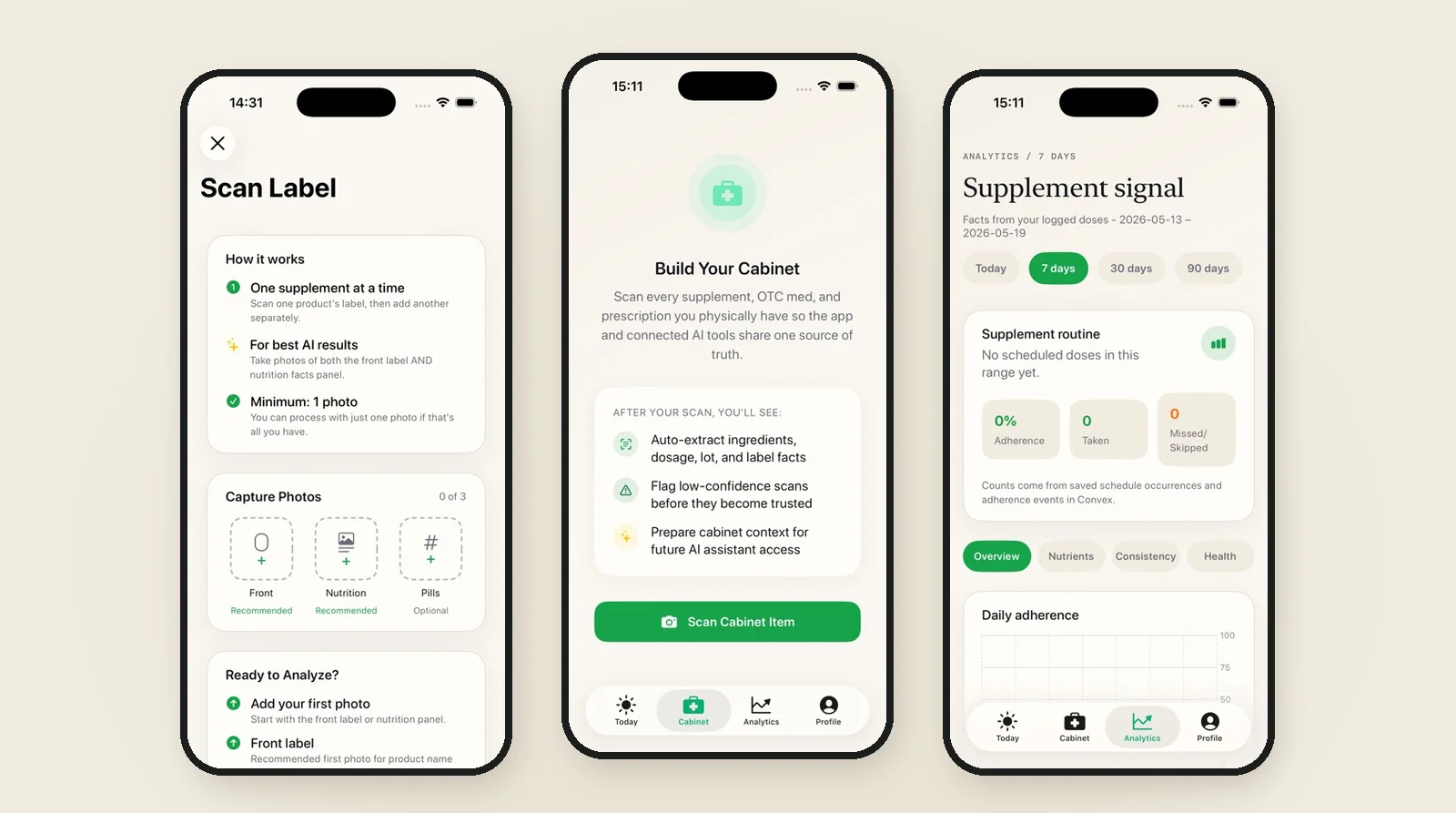
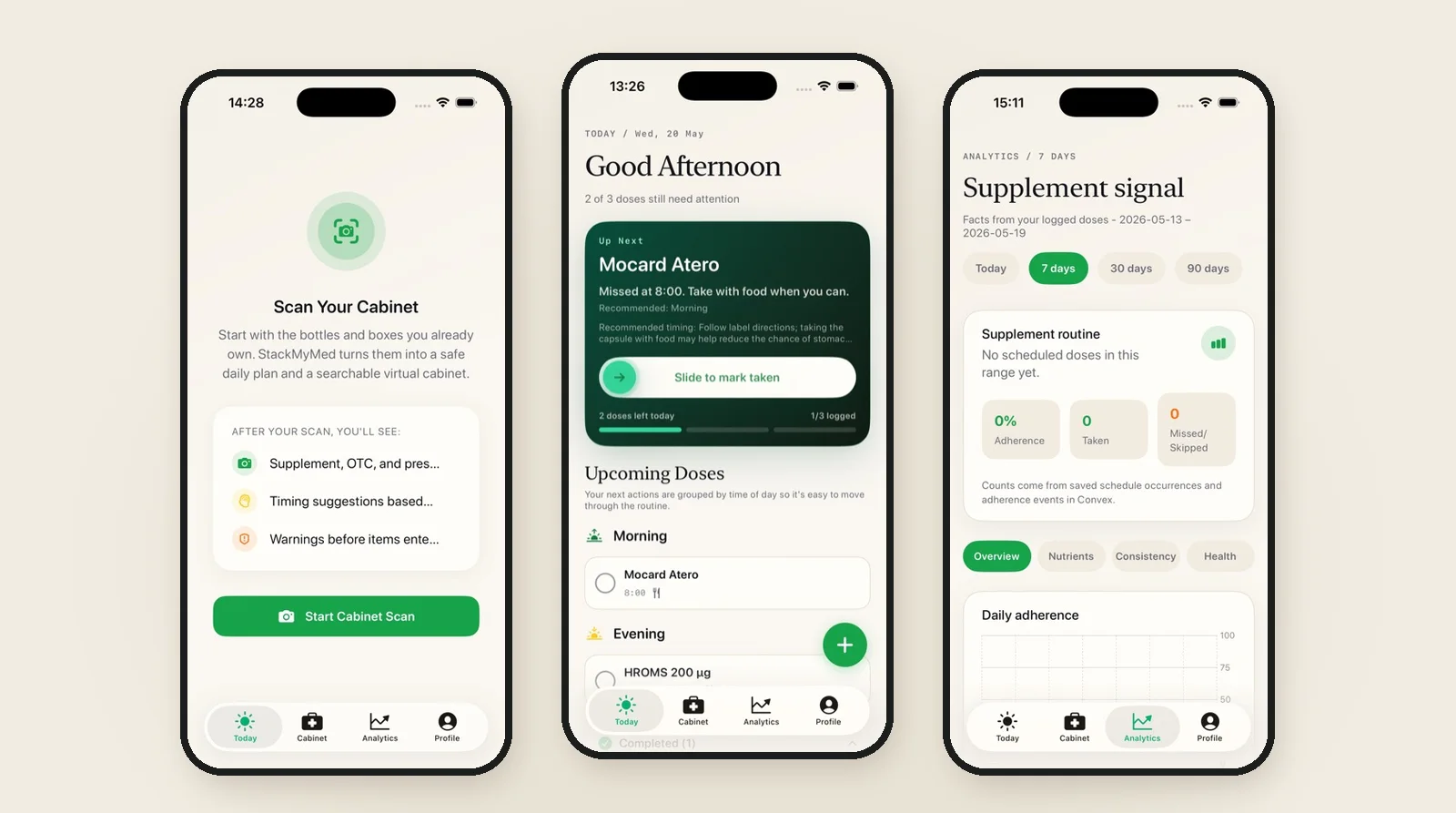
StackMyMed takes the label as the starting point. You photograph the front of the package and the Supplement Facts panel, review the extracted product name, strength, serving and ingredients, and save the product to a searchable cabinet. You then set its schedule yourself and log doses as taken or skipped in the Today view. See how the supplement tracker keeps that record together.
Be clear about one difference: StackMyMed keeps its own schedule and dose log. It can optionally read some Apple Health data for wellness context, but it does not add your products to the Health app's Medications list. If you use both, decide which app holds your reminders so you do not get two notifications for the same product.
Common questions
Is tracking supplements in Apple Health free?
Yes. The Medications feature is part of the Health app on iPhone. Availability of some features, such as camera lookup and interaction information, depends on your country or region.
Can I add a supplement that Apple Health does not find?
Yes. Enter the name yourself and add the strength from the label. Apple notes that unlisted products are not included in its interaction information.
Does Apple Health tell me when to take a supplement?
No. You choose the schedule, and Health reminds you at the times you set. Use the product label and advice from a pharmacist or clinician to decide the plan. Our methodology page explains the difference between a saved schedule and a recommendation.
Published by the maker of StackMyMed. Product descriptions were checked against linked official sources on 19 November 2026. Read our editorial approach or report a correction.
StackMyMed for iPhone
Keep the label, the schedule and the log together.
Scan labels, set your product schedules and record taken or skipped doses. Start with up to five scans.
Download on the App Store ↗Explore supplement reminders