Medication reminders · Practical guide
How to set pill reminders on your iPhone
Start with the schedule you already follow. Here is how to turn it into reminders, keep a clear dose record, and choose a dedicated app when you need one.
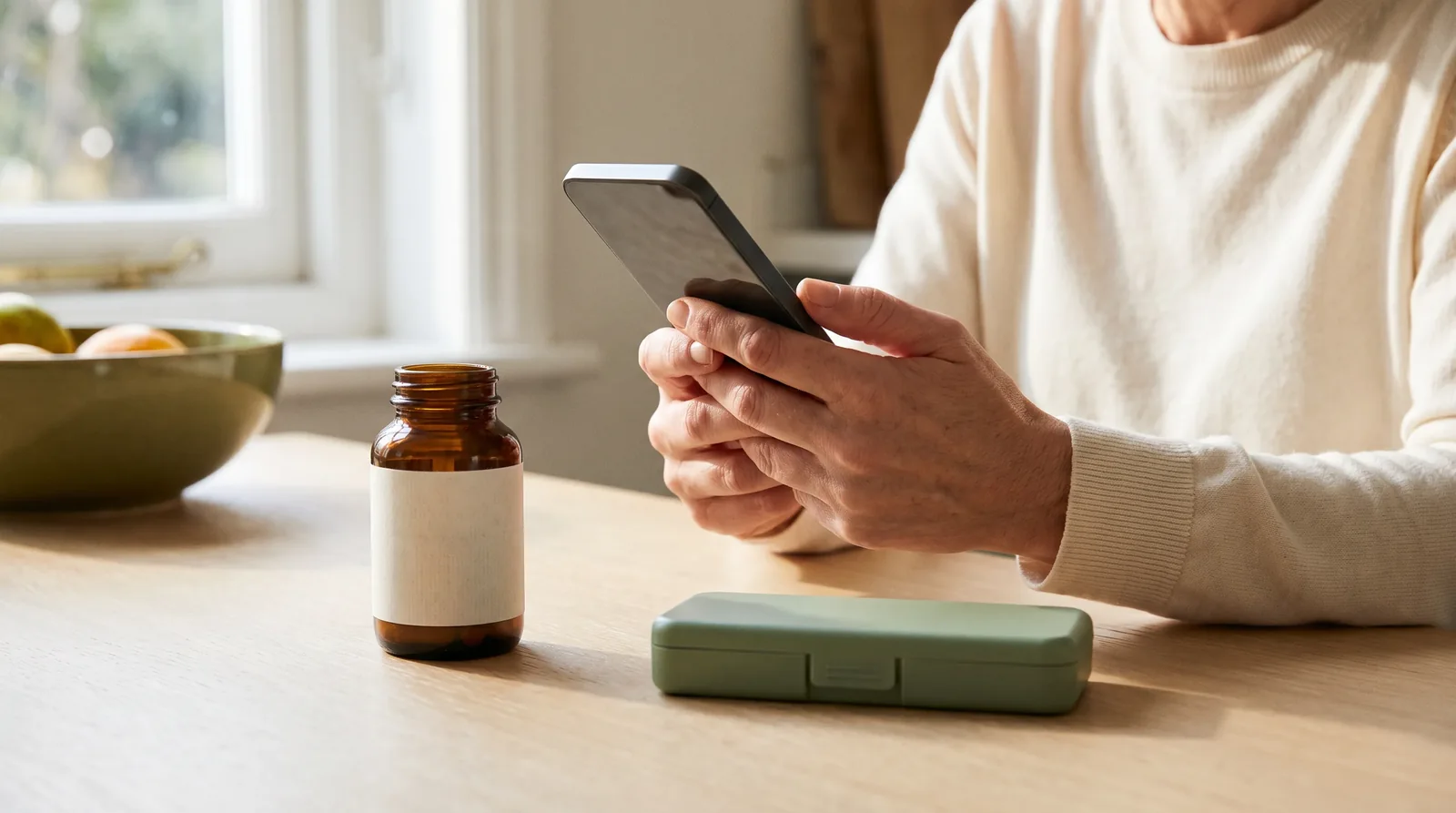
You can set pill reminders in the Health app on your iPhone. Add the product under Medications, enter the schedule you already follow and check that dose reminders are enabled. A dedicated app is another option if you want your medication reminders connected to supplement labels and a searchable product cabinet.
The useful starting point is the information on your packaging and the plan agreed with your healthcare professional. This guide explains how to organise reminders. It does not choose a dose, a treatment time or what to do after a missed dose.
Get the product record right first
A notification is only useful if you know exactly what it refers to. Before opening an app, gather the packaging or an existing medication list and check the following details:
- The product name, including enough detail to distinguish similar bottles.
- The strength or form shown on its label.
- The amount you have been instructed to take.
- The days and times in your existing plan.
- Any instructions you need to remember alongside the time.
Keep those fields separate. The strength printed on a bottle and the number of tablets in a scheduled dose are different pieces of information. If any instruction is unclear, resolve that before creating an alarm around it.
Set up medication reminders in Apple Health
Apple's current instructions use the Search tab. Depending on your iOS version, the entry point may be labelled differently; find the Medications section inside Health.
- Open Health, choose Search, then Medications.
- Choose Add a Medication and identify the product.
- Enter its details and the schedule you follow, then save.
- Open Options within Medications and check Dose Reminders.
Apple also documents follow-up reminders after 30 minutes without a logged dose. Its current iPhone guide describes optional Critical Alerts for individual medications. Availability and behaviour depend on your device, settings and region. Sources: Apple's medication setup instructions and the iPhone medication guide.
Check the setup before relying on it
Review the saved entry rather than stopping when the form closes. Is it the intended product? Are the days and times correct? Can you tell it apart from a second strength or a similarly named supplement?
It is also worth finding the record screen while you are setting things up. Decide where you will look when you cannot remember whether you logged an intake. A reminder list and a completed-dose history should be distinguishable at a glance.
If a notification does not appear, check the saved schedule, app notification permissions and relevant Focus settings. Critical Alerts are a specific Apple feature; do not assume a different reminder app can bypass silent mode or Focus in the same way.
Record what happened, not just that an alert appeared
Apple lets you log a medication from Health or from a reminder and choose Taken or Skipped. Dismissing a notification is not the same as recording an intake. Follow the app's logging workflow so that your history reflects what you actually did. See Apple's logging instructions.
The same distinction matters in any pill tracker. A useful record should not make an unlogged item look completed. When you review your day, you should be able to see what is recorded and what remains uncertain. If a dose was missed, consult the relevant instructions or your pharmacist instead of treating an app's empty box as advice to take an extra dose.
When a dedicated pill reminder makes sense
A dedicated app may be useful if the schedule is only part of the problem. For example, you might want to preserve supplement label details, keep medication and vitamin records in the same cabinet, or review a product later without finding the original bottle.
In StackMyMed, the workflow is to capture and review a product, save it, set its schedule and log the dose in your daily routine. You can set times manually for each product. That gives you a place to organise an existing plan without depending on an automatic timing suggestion.
Start by checking the extracted product details against the label. Then enter the schedule you intend to follow, save it and review the product in the daily plan. Check notification permission on the iPhone as part of setup. Learn more about our pill reminder and medication tracker or supplement reminders.
StackMyMed requires iOS 18 or later. The app starts with up to five product scans, with additional capacity available through Premium. The App Store listing describes the current public version. For other approaches, see our comparison of four iPhone reminder apps.
Keep one clear record for each routine
If you are trying a new app, decide which record you will use as your reference. Overlapping alarms and two partly completed histories can make a simple routine harder to follow. Review the entries during the transition and keep the existing care plan available.
When a product or instruction changes, update the product record and its schedule together. A renamed alarm with an old note is easy to misread later. For a routine with several bottles, our supplement schedule worksheet provides a simple way to organise the information before entering it into an app.
Common questions
Can I create reminders for vitamins?
Apple describes support for vitamins and supplements in Health. StackMyMed also supports supplement records and schedules. Choose the workflow based on the information you want to keep, not just the notification.
Does a pill reminder choose when I should take a medication?
A manual reminder records a time you enter. Use the instructions you already have, and get unclear or conflicting directions checked. A convenient notification time is not automatically an appropriate treatment time.
What if I only want a very simple reminder?
Begin with the smallest tool that meets your needs. If a built-in medication record is sufficient, there may be no reason to install another app. Compare dedicated options when you have a specific missing feature.
Published by the maker of StackMyMed. Product descriptions were checked against linked official sources on 6 September 2026. Read our editorial approach or report a correction.
StackMyMed for iPhone
Give every product a place in your daily plan.
Scan labels, set your product schedules and record taken or skipped doses. Start with up to five scans.
Download on the App Store ↗Explore our medication tracker