Supplement scanner · Step-by-step guide
How to scan a supplement label and check the result
A supplement scanner app can turn a bottle into a record in a minute. The photos you take and the check you do afterwards decide whether that record is right.
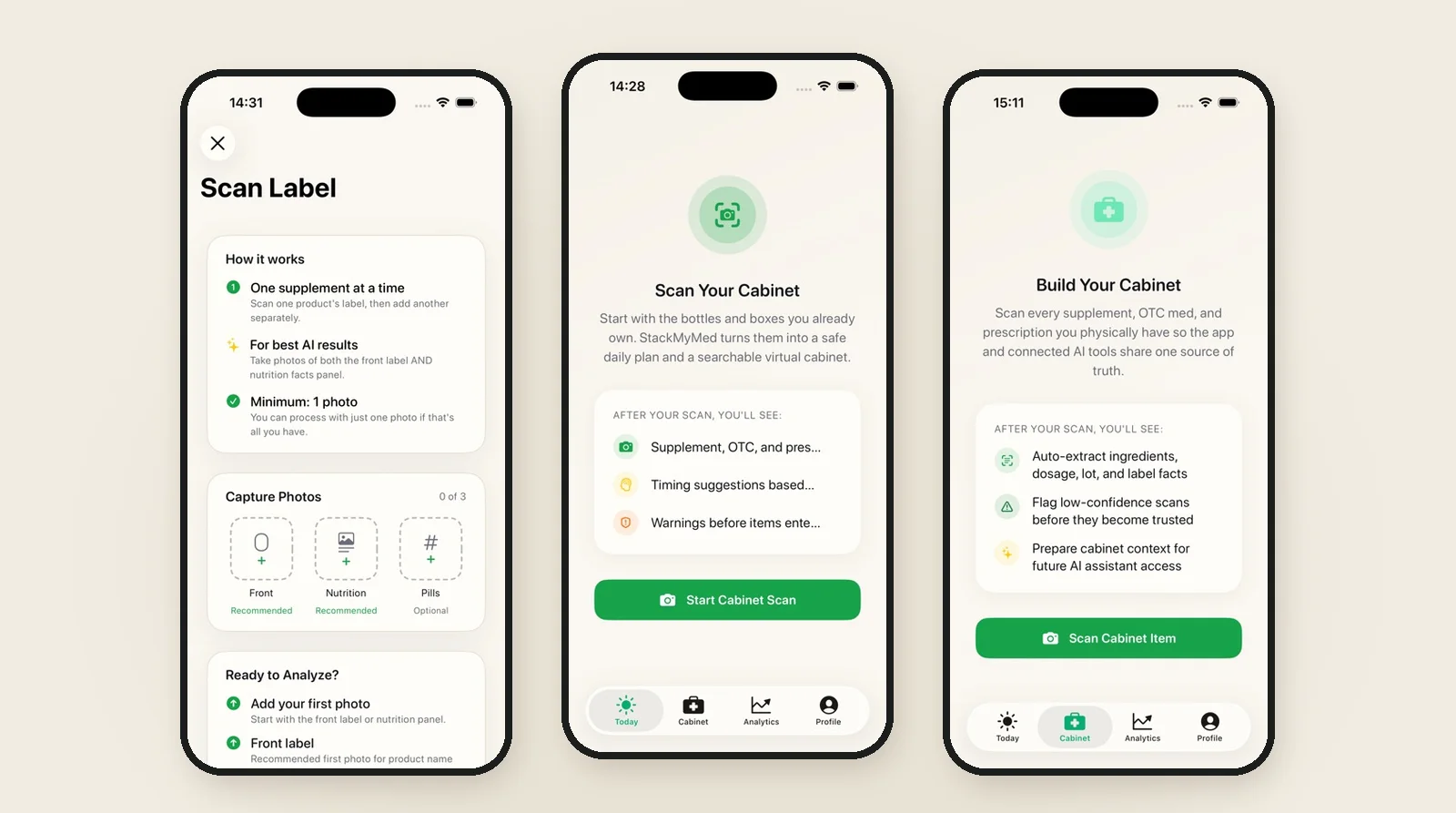
To scan a supplement label on iPhone, photograph the front of the package and the Supplement Facts panel in good light, then check every extracted field against the bottle before you save it. A supplement scanner app saves typing and keeps the label with the record. It still reads a photo, so your review is what makes the record reliable.
Disclosure: we make StackMyMed, and the walkthrough below uses our app. The screens shown are from the StackMyMed iPhone app; yours may look slightly different depending on the version. Checked on 19 November 2026.
What a supplement scanner app does
"Supplement scanner" covers a few different tools. Some scan a barcode and look the product up in a database. Some score brands or summarise research about ingredients. Others read the label itself from a photo and turn it into a record you can schedule and track.
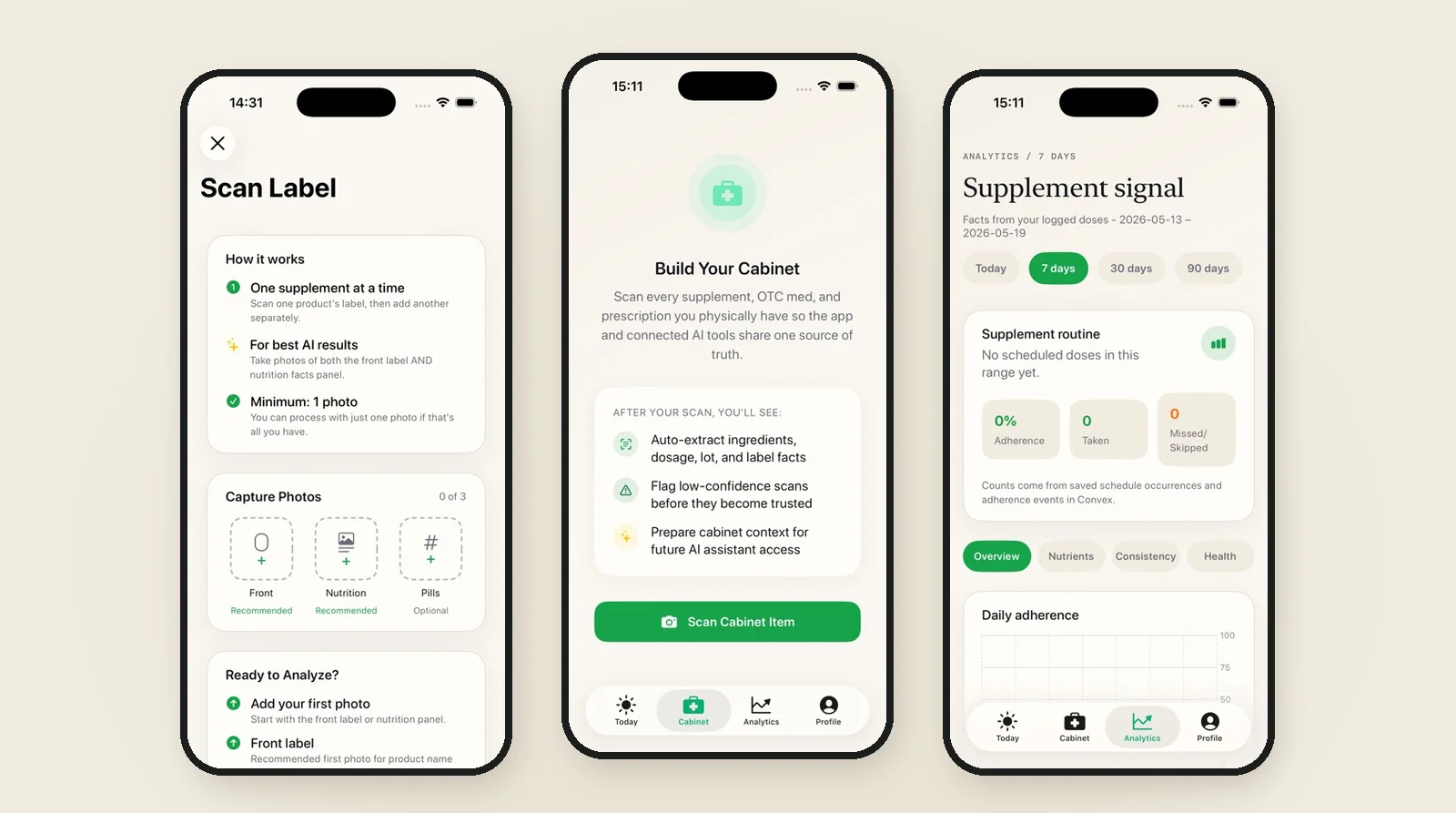
StackMyMed is the third kind. It reads the printed label with AI-assisted extraction, shows you the product name, brand, serving size, ingredients, strength, form and warnings as separate fields, and saves the product to your cabinet once you confirm them. It is useful when you want the label you actually own in your records, including products a barcode database may not list. If you are comparing app types, our supplement tracker app comparison explains the differences.
Step 1: take photos the app can read
Most extraction problems start with the photo. A few habits make a big difference:
- One product at a time. Keep other bottles out of the frame so their text does not mix into the result.
- Front label first. It carries the product name, brand and usually the strength per unit.
- Then the Supplement Facts panel. This is where the serving size, the amount per serving and the ingredient list live.
- Flat and sharp. On a curved bottle, turn it so the panel faces the camera, or take the panel in two photos. Avoid glare from overhead lights.
- Optional extras. A photo of the lot number or expiry date can be useful for your own records.

StackMyMed accepts up to three photos per product and can work from one, but the front label plus the Supplement Facts panel gives the most complete result. You can take new photos or choose existing ones from your photo library.
Step 2: check every field against the package
This is the step that matters most. Hold the bottle next to the phone and compare:
- Product name and brand. Make sure it is distinguishable from similar bottles, such as two vitamin D products in different strengths.
- Serving size. "2 capsules" and "1 capsule" change every amount on the panel. Check the unit as well as the number.
- Amount per serving. Compare each ingredient's number and unit (mg, mcg, IU) with the panel. Units are a common place for a misread.
- Ingredient list. Multivitamins and blends can list many items. Check that nothing is missing or duplicated.
- Directions and warnings. Compare any extracted directions with the printed text, word for word where it matters.
StackMyMed highlights values it is less confident about before you save, so ambiguous text is not quietly added to your cabinet. Correct anything that does not match. A well-formatted result is not proof that every field is right; our methodology page explains why label information always needs your review.
If you want a refresher on the parts of the panel, UsefulVitamins, a related publication, has a supplement label reading guide.
Step 3: save the product and set its schedule
Once the fields match the package, save the product. It joins your cabinet, where you can search by product, brand or ingredient and keep the original photos with the record. Products you stop using can be kept for history instead of being deleted.
Then add the schedule you already follow: which days, what time and any notes from the label. You set those times yourself. A saved time organises your plan; it is not a recommendation about what to take. Our supplement reminder schedule guide helps you lay out a routine for several products, and the supplement reminder page shows how reminders and the taken or skipped log work in the app.
Scanning a whole cabinet
If you have many products, scan them in one sitting while the bottles are together. Work through them one at a time, check each result before moving on, and set the bottle aside once it is saved. That keeps you from saving the same product twice or mixing up two similar labels.
When you take medications too, you can add their packaging the same way and keep everything in one routine. The supplement scanner page describes which label types the app is built for.
What scanning cannot tell you
A scanner records what the label says. It does not test the product, confirm what is inside the bottle, or decide whether an amount or a combination suits you. Interaction information in any app depends on its sources, and finding no warning does not establish that a combination is safe.
Keep the package and the advice of a pharmacist or clinician as your reference. Use the saved record to bring a clear, accurate list to those conversations.
Common questions
Is there a free app to scan vitamins and supplements?
Several apps offer a free tier. StackMyMed starts with up to five product scans, with an optional annual Premium subscription for more. Check the current App Store listing for pricing in your country.
Can I scan supplements with the iPhone camera without an app?
The Health app can use the camera to identify some products in the U.S. It records a name, type and strength rather than the full label. Our Apple Health supplement guide explains the steps.
What if the scan gets something wrong?
Correct the field before saving, or retake the photo in better light. If the extracted text is consistently unclear, enter that detail manually from the package.
Published by the maker of StackMyMed. Product descriptions were checked against linked official sources on 19 November 2026. Read our editorial approach or report a correction.
StackMyMed for iPhone
Scan your first supplement label.
Scan labels, set your product schedules and record taken or skipped doses. Start with up to five scans.
Download on the App Store ↗Explore the supplement scanner